Cross compile PRU code from the host machine
This guide helps you set up your Linux PC to cross-compile code for the BeagleBone’s PRUs (Programmable Real-Time Units) without needing to transfer it to the board. The tools below should work for other Texas Instruments PRUs as well.
The following content has been reproduced from our team’s original paper1 and posted here for further reference.
Before you begin
- Make sure you have a Linux computer (this guide was tested on Debian 11.8).
- You’ll need an internet connection to download the tools.
- Be comfortable using the Linux command line.
Step 1: Install the PRU Code Generation Tools (CGT)
The PRU CGT is a set of utilities that includes a compiler, assembler, linker, and other tools necessary for developing PRU applications.
Warning: Do NOT move on to the next step until the current one is completed successfully!
Download the latest version of the tools from the Texas Instruments website.
We will use the Linux Installer for PRU CGT version 2.3.3 for this guide.
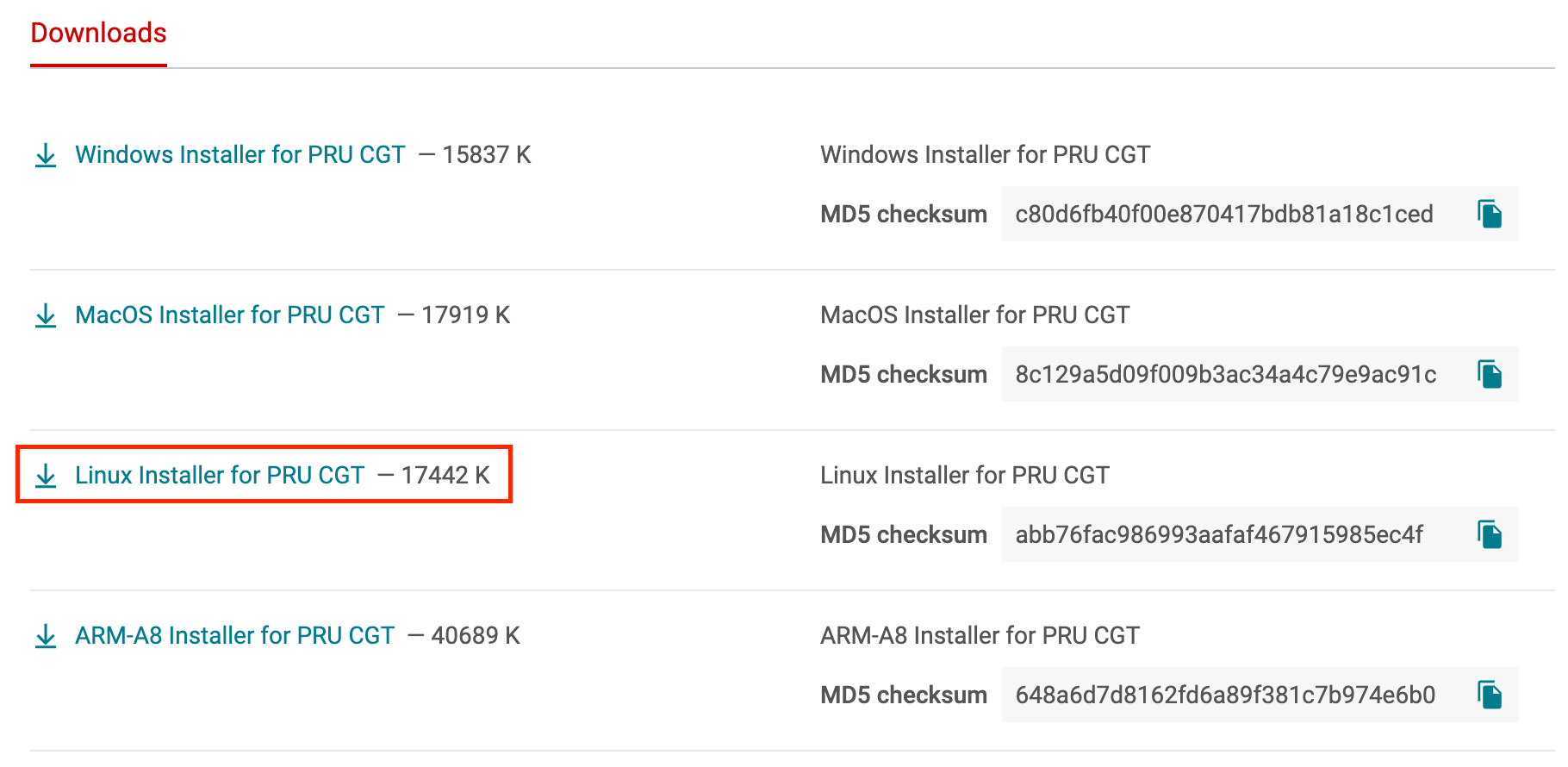
In your downloads directory, make the installer executable.
1
 chmod +x ti_cgt_pru_2.3.3_linux_installer_x86.bin
Run the installer as root.
1
 sudo ./ti_cgt_pru_2.3.3_linux_installer_x86.bin
Troubleshooting:
If you encounter
sudo: unable to execute ***: No such file or directory, installlib32z1and try again.1
sudo apt install lib32z1
Follow the prompts to complete the installation.
When asked for
Destination Directory, enter:/usr/share/ti/cgt-pruLink the tools to your system path.
1
2
3
4
 for file in /usr/share/ti/cgt-pru/bin/*; do
     filename="$(basename "$file")"
     sudo ln -sf "$file" "/usr/bin/$filename"
 done
(Optional) Set the
PRU_CGTenvironment variable.1
export PRU_CGT="/usr/share/ti/cgt-pru"
Depending on your setup, you may need to repeat this export every time you open a new terminal. Refer to this StackExchange post and comment for ideas on how to set an environment variable permanently.
Step 2: Install the PRU Software Support Package (PSSP)
The PSSP includes libraries and example code for developing PRU applications.
Download the latest version of the PSSP from their Git repository.
We will use version 6.4.0 for this guide.
1
2
3
 sudo git clone --depth 1 --branch v6.4.0 \
     git://git.ti.com/pru-software-support-package/pru-software-support-package.git \
     /usr/lib/ti/pru-software-support-package-v6.4.0
Link to your system path.
1
2
3
 sudo ln -sf \
     /usr/lib/ti/pru-software-support-package-v6.4.0 \
     /usr/lib/ti/pru-software-support-package
Step 3: Compile your PRU code
Navigate to the directory containing your PRU code.
Note: Make sure there are no spaces in your directory name, the compiler is very picky about this.
Compile your code as usual, often using a
Makefile:1
make
If the compilation is successful, you will find a
.outfile in thegenfolder within your current directory.Load the generated output file onto your PRU firmware and install it.
Congratulations
You should now be able to cross-compile PRU code from your host PC. This hopefully makes your development process more efficient, as you can better check for errors before installing onto the BeagleBone’s PRUs. Happy coding!
Automated Scripts
For convenience, here are automated installation and uninstallation scripts for the tools mentioned above to help you get started quickly, along with their respective SHA256 checksums provided below.
1
2
echo "1a79a04d5fc5e4c7cce340ed63c5092d6e9e513ef0939f93172445b20121cb33  install-pru.sh" | sha256sum -c -
echo "52bc8e8dbd4eae7786627f7f9687dbd9d01895a5fe09ddf409fd7395ef3ab3ef  uninstall-pru.sh" | sha256sum -c -
Comments powered by Disqus.